I find it really annoying when I'm working in a large spreadsheet and have to copy a formula that I just entered all of the way down to the bottom of the column. Mind you, this isn't much of a problem if the spreadsheet only goes down to the bottom of the screen, but I often work with spreadsheets that contain information on students in multiple buildings; this can mean that I'm dealing with thousands of rows of information. Having to click on the "auto fill" cursor (you know, the little plus sign in the lower right hand of the cell) and drag down through thousands of rows can be a real pain...if only there were an easier way.
Showing posts with label Tips & Tricks. Show all posts
Showing posts with label Tips & Tricks. Show all posts
Thursday, January 12, 2017

Monday, January 9, 2017
How To Join Multiple Cells In A Spreadsheet.
In my last post, I showed you how to take information from one cell and split it into two different cells. In this post, I'm going to show you how to take multiple cells and combine their data into one cell.

Friday, October 7, 2016
Saving A Google Doc In Another Format
If you're like me, you probably think that Google Docs are the greatest things since sliced bread. That is, unless you need to use the document in a way that doesn't involve the web, say like if you want to upload the document into another program that isn't setup to accept Google based files.
 If you need to convert your Google document into another format, the process is simple. With your document open, click on File, and then on Download as, which is about two-thirds of the way down the page. This will open up a list of seven different formats you can choose from, such as .docx, .pdf, .epub.
When you click on your option of file type, it will save it in your downloads folder. From there, you can upload it to that pesky program that hasn't quite gotten the hang of playing nice with Google.
 If you need to convert your Google document into another format, the process is simple. With your document open, click on File, and then on Download as, which is about two-thirds of the way down the page. This will open up a list of seven different formats you can choose from, such as .docx, .pdf, .epub.
When you click on your option of file type, it will save it in your downloads folder. From there, you can upload it to that pesky program that hasn't quite gotten the hang of playing nice with Google.
Wednesday, May 4, 2016
Tip of the Week - May the 4th be with you!
 Happy Star Wars day to everyone! Today's tip has to do more with general time savings rather than a specific tip for one of our commonly used programs. Most computer mice now a days have a scroll wheel, or some part that allows you to scroll up and down on the computer screen. I've been using mine for quite some time, but it wasn't until recently that I started using one of the functions of the scroll wheel - the double click.
Monday, April 25, 2016
Tip of the Week 4/25/16
Last week's Tip of the Week is a little late, I got all set to write it and then noticed that many of the images that I'd uploaded in previous posts had disappeared and spent the afternoon chasing down the missing images. Hopefully things will go more smoothly from now on.
I wanted talk about keyboard shortcuts this week. I've already told you about two timesaving shortcuts that I use on a daily basis, Ctrl+Tab (for moving between tabs) and Alt+Tab (for moving between open windows) you can see that post here.

I wanted talk about keyboard shortcuts this week. I've already told you about two timesaving shortcuts that I use on a daily basis, Ctrl+Tab (for moving between tabs) and Alt+Tab (for moving between open windows) you can see that post here.

Thursday, April 21, 2016
Customizing Your Profile Photo for Your Google Account
 Have you ever received an email from someone and saw either their picture, or a picture of something that represents them and think "How do I get MY picture to show up?" Today I'm going to show you just how easy it is to link your picture to your Google account.
Friday, April 15, 2016
Tip of the Week 4/15/16
I've decided that, in addition to blogging about educational technology in general, I'm going to start writing weekly tips for programs that we commonly use in our district, mostly centered around Illuminate, Skyward, and various Google programs that we have available to us. If you'd like to learn about something specific, feel free to send me requests and I'll add them to future Tip of the Week posts.
Now, without further ado, here is this week's Tip of the Week...
Using the Tab Key to Quickly Enter Data
Friday, February 26, 2016
Changing a Student's Password to the Online Testing Portal in Illuminate
If you're having students test online using the Illuminate Student Portal and the student is having trouble logging in, you may need to change the student's password. First off, make sure that the student is entering in the correct username, this will be the students UIC, or state ID number, which can be found in the Illuminate roster; it will be the ID column to the left of the name.
If the username is correct, but it's still not letting the student log in, the next step would be to change the password. There are two ways to do this: the first way would be through the student search function, either through the search bar at the top of the website, or through the Students tab in the toolbar. The second way would be from the online test roster.
If the username is correct, but it's still not letting the student log in, the next step would be to change the password. There are two ways to do this: the first way would be through the student search function, either through the search bar at the top of the website, or through the Students tab in the toolbar. The second way would be from the online test roster.
Monday, February 22, 2016
Using Advanced Printing Options From Google Docs
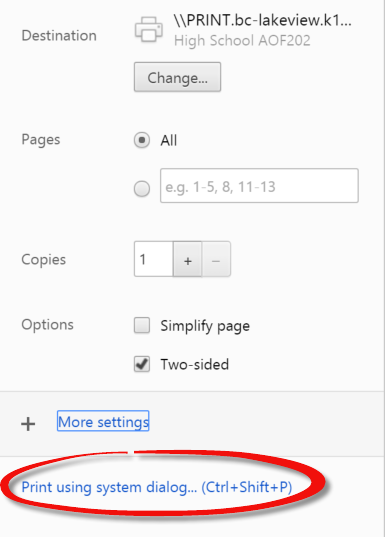 When printing from Google Docs, the only options that are immediately available are which pages you’d like to print, how many copies you’d like, and the ability to print two sided (assuming you’re using a printer that is able to do two sided copies). If you want advanced features, you have to choose Print using system dialog… (Ctrl + Shift + P) from the Print page. Choosing this option will take you to the print options that you see when you print from word processing programs such as Microsoft Word.
Wednesday, February 10, 2016
Illuminate Tips & Tricks
I'm excited to see more and more teachers utilizing Illuminate to record and analyze student data, and not necessarily because of the directive to put in CUAs or final exams, but for formative assessments or tickets out of class. Illuminate is a powerful tool, and with a little training, actually fairly easy to navigate.
 I've recently started putting together step-by-step directions, called Illuminate FAQ, on how to get around in Illuminate in order to help teachers that just want a quick tutorial. So far, I've created an introduction that walks you through the basics of the Illuminate work area (tool bars, control panel, etc.), how to set up your grade-cam, how to filter student results to look at subgroups, and how to remove individual scores.
The link to these tutorials can be found on the District Staff webpage on the left side of the screen. I'm always looking for more information to help teachers out, so if you'd like to see something added to the Illuminate FAQ, please shoot me an email and I'll get right to work on the write-up.
For those of you who feel that you need one-on-one help rather than trying to use these tutorials, I would be happy to meet with you during any time that you are available. I can come visit during your PLC time, planning time, or before and after school to help get you up and running.
 I've recently started putting together step-by-step directions, called Illuminate FAQ, on how to get around in Illuminate in order to help teachers that just want a quick tutorial. So far, I've created an introduction that walks you through the basics of the Illuminate work area (tool bars, control panel, etc.), how to set up your grade-cam, how to filter student results to look at subgroups, and how to remove individual scores.
The link to these tutorials can be found on the District Staff webpage on the left side of the screen. I'm always looking for more information to help teachers out, so if you'd like to see something added to the Illuminate FAQ, please shoot me an email and I'll get right to work on the write-up.
For those of you who feel that you need one-on-one help rather than trying to use these tutorials, I would be happy to meet with you during any time that you are available. I can come visit during your PLC time, planning time, or before and after school to help get you up and running.
Tuesday, December 8, 2015
Google Apps for Education (GAFE)

There seem to be two camps in our school district when it comes to Google Drive, those who love
it and have embraced it, and those who don’t understand how it works and treat it as if it is some magical place. To try and clarify it for the second group, I’ll start out by asking how many of your use the shared drive at work?
Many of the people who have shown concern over the idea of saving files to the cloud have no qualms about saving files in our shared drive, an offsite server, which is pretty much the same thing. Over the next few weeks, I’m going to be sharing tips and tricks on how to use some of the Google Apps for Education (GAFE) such as Google Docs (think MS Word), Sheets (MS Excel), Slides (MS Powerpoint), and Forms. While there are quite a few differences between the Microsoft and Google versions of these programs, and while the Microsoft versions are far superior in some aspects, many people won’t notice much difference switching from the old standby to the cloud based GAFE versions.
Friday, December 4, 2015
A Very Belated Welcome Back to the New School Year.
Now that we're back and have had a chance to experience some of the new technological initiatives that our district is starting this year (Chromebooks at the high school, Illuminate, Reflect, Atlas Rubicon, go big, or go home, right?) I've decided that its time that I resumed my posts here on the Instructional Technology Blog. I'm going to start posting tips and tricks, throughout the month, to help people become more comfortable with the technology that we have available.
The first set of tricks that I'm going to share are meant to help you save time and use the mouse less. Using the Tab button along with either Ctrl or Alt button allows you to quickly switch between open tabs, or windows respectively.
If you hold down the Ctrl button and hit Tab once, it moves you to the next open tab. Each time you hit Tab while holding Ctrl, it moves you to the next tab, the next tab, etc. I find it easiest to hold the Ctrl button with my thumb and use my middle finger to hit Tab when I'm doing this.
The first set of tricks that I'm going to share are meant to help you save time and use the mouse less. Using the Tab button along with either Ctrl or Alt button allows you to quickly switch between open tabs, or windows respectively.
If you hold down the Ctrl button and hit Tab once, it moves you to the next open tab. Each time you hit Tab while holding Ctrl, it moves you to the next tab, the next tab, etc. I find it easiest to hold the Ctrl button with my thumb and use my middle finger to hit Tab when I'm doing this.
Subscribe to:
Posts (Atom)